Help / Set up
Pairing with your Mac
The iPhone & iPad companion app is in release testing — it isn't on the App Store yet, and this guide describes the current test build.
The Android companion app is in release testing — it isn't on Google Play yet, and this guide describes the current test build.
Pairing links a phone or tablet to the free LocalPhotos app on your Mac. It happens once; after that the two devices recognise each other automatically.
On the Mac
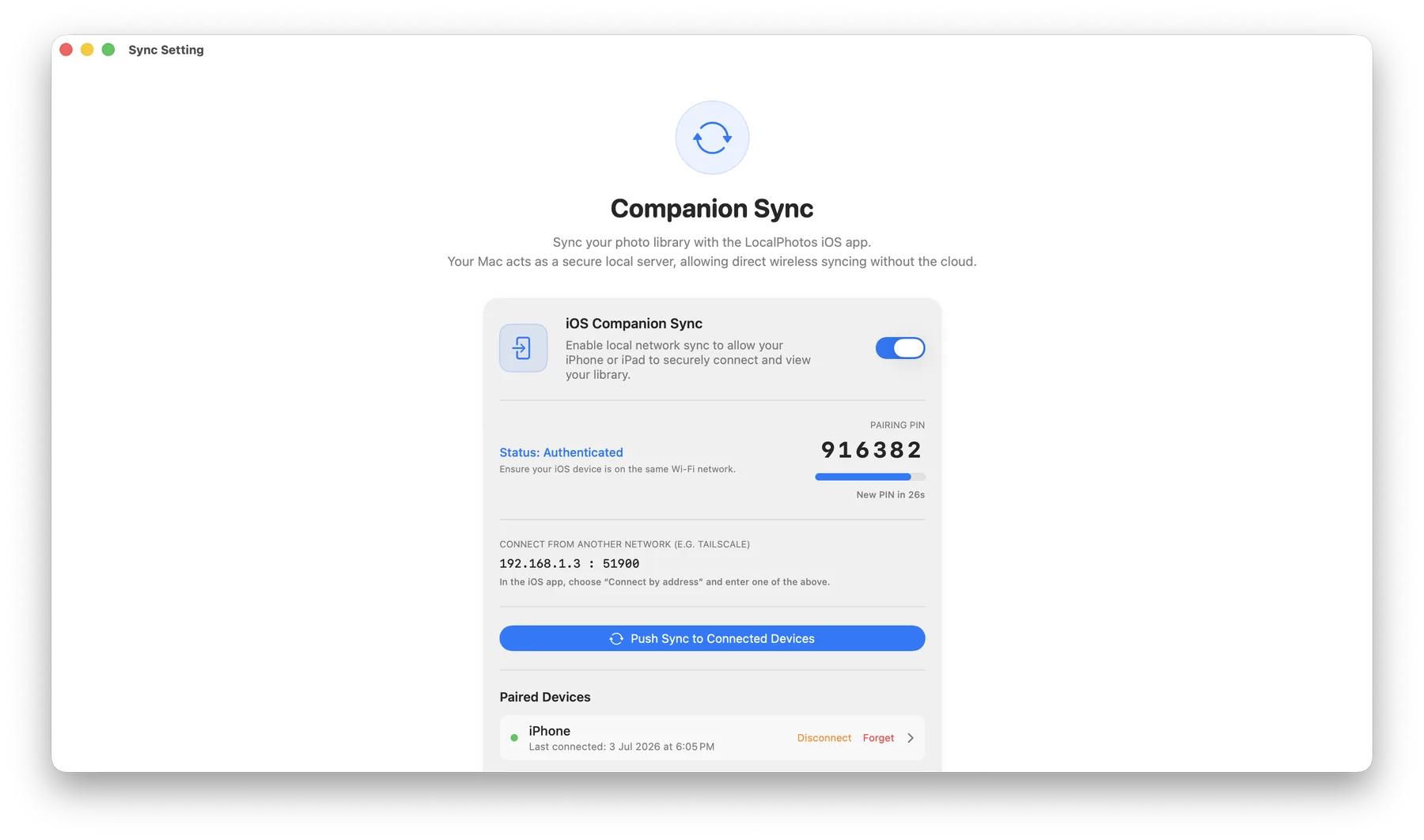
- Open LocalPhotos → Settings and turn on Companion Sync. The pairing PIN (and a QR code) appear there; the PIN rotates every 30 seconds.
- Companion Sync is per-library: right-click a library in the sidebar to enable or disable it for syncing. Only enabled libraries are offered to paired devices.
- Keep the Mac awake and the app open while a device pairs and runs its first sync.
If devices can’t find the Mac
- macOS firewall: allow incoming connections for LocalPhotos (System Settings → Network → Firewall).
- Both machines must be on the same network — guest Wi-Fi networks often isolate devices.
- The device can always connect directly to the address shown in Companion Sync settings, port 51900.
Set up
- On your Mac, install LocalPhotos from localphotos.app and open it.
- In the Mac app’s Settings, turn on Companion Sync — the pairing PIN appears there.
- Keep the Mac and this device on the same Wi-Fi network.
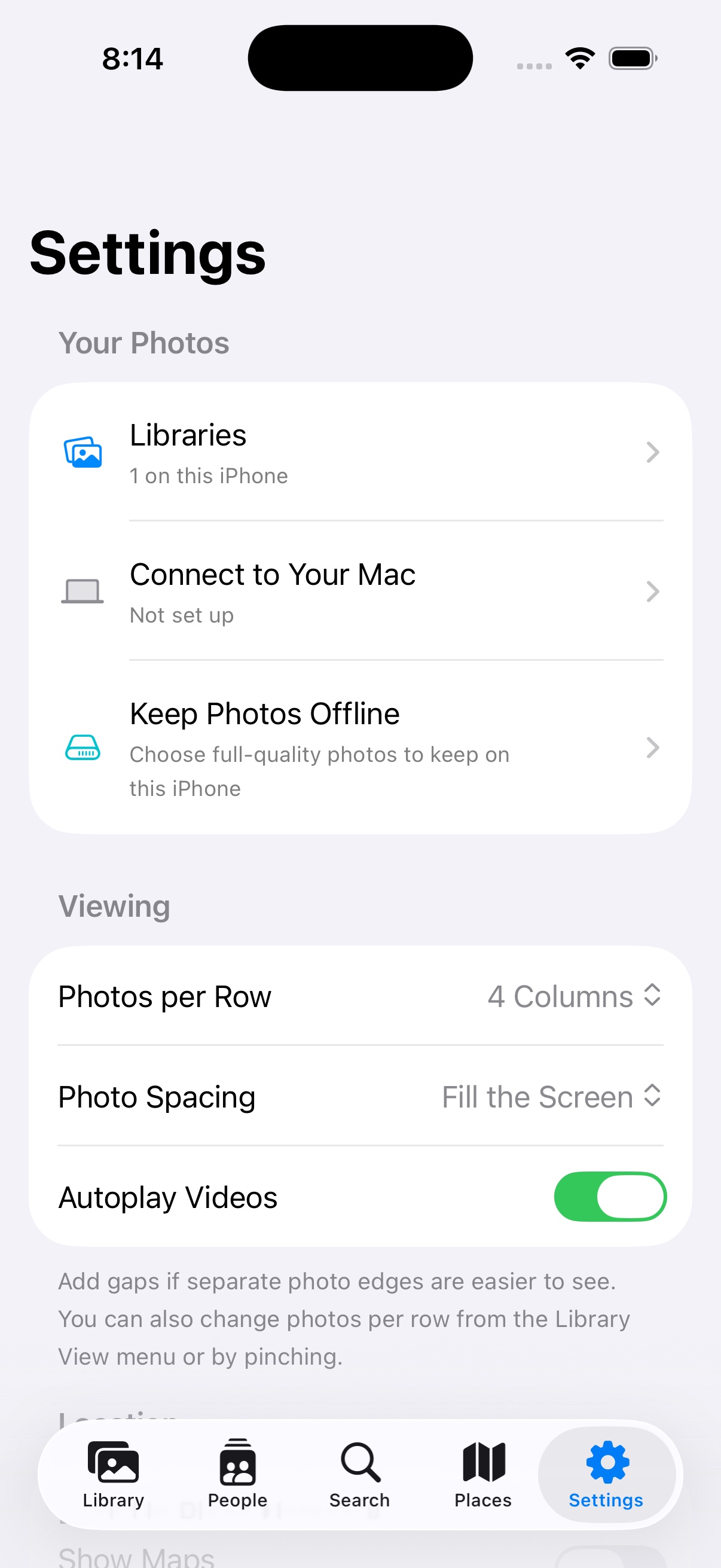
- In the app, choose Direct Mac Sync, pick your Mac from the list (or scan the QR code shown on the Mac), and enter the 6-digit PIN.
If your Mac doesn’t appear
- iOS needs the Local Network permission to discover your Mac — check Settings → Privacy & Security → Local Network if the list stays empty.
- Guest Wi-Fi networks often isolate devices from each other; use the same regular network.
- A firewall on the Mac can block discovery — allow LocalPhotos in the Mac’s network settings.
- Skip discovery entirely: choose Connect by Address and type the Mac’s IP address (shown in the Mac app’s Companion Sync settings), port 51900.
- “Incorrect PIN” usually means it rotated — read the current one off the Mac and try again.
The device stores only a pairing token, in the Keychain. The PIN itself is never saved.
Set up
- On your Mac, install LocalPhotos from localphotos.app and open it.
- In the Mac app’s Settings, turn on Companion Sync — the pairing PIN appears there.
- Keep the Mac and the phone on the same Wi-Fi network.
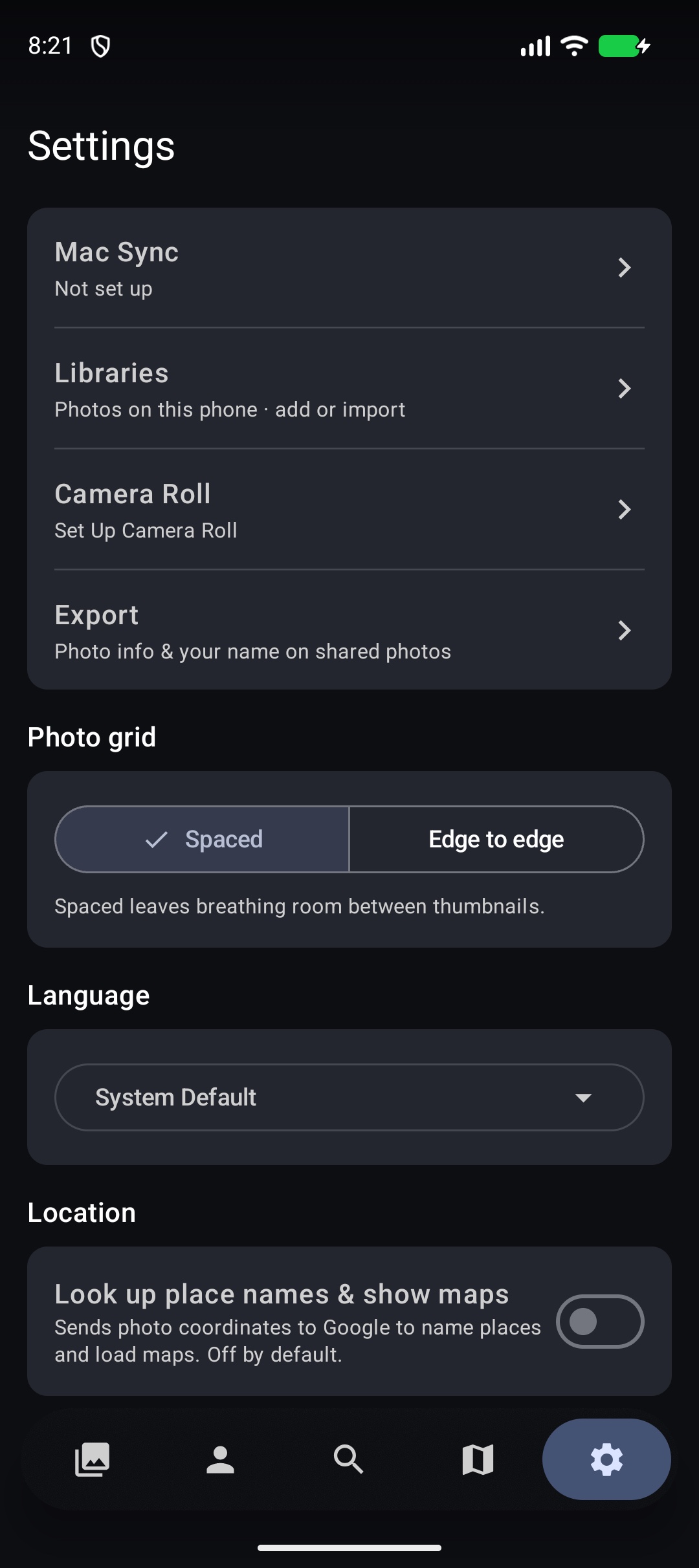
- In the app, choose Connect to Mac, pick your Mac from the list (or scan the QR code shown on the Mac), and enter the 6-digit PIN.
If your Mac doesn’t appear
- Guest Wi-Fi networks often isolate devices from each other; use the same regular network.
- A firewall on the Mac can block discovery — allow LocalPhotos in the Mac’s network settings.
- Skip discovery entirely: choose Connect by Address and type the Mac’s IP address (shown in the Mac app’s Companion Sync settings), port 51900.
- “Incorrect PIN” usually means it rotated — read the current one off the Mac and try again.
The phone stores only a pairing token, in encrypted storage. The PIN itself is never saved.
Was this page helpful? Tell us what’s missing — it goes straight to a human, not a tracker.