Help / Set up
Getting started
The iPhone & iPad companion app is in release testing — it isn't on the App Store yet, and this guide describes the current test build.
The Android companion app is in release testing — it isn't on Google Play yet, and this guide describes the current test build.
LocalPhotos never needs an account. Setting up is just picking where your photos come from — and every door stays open after you choose one.
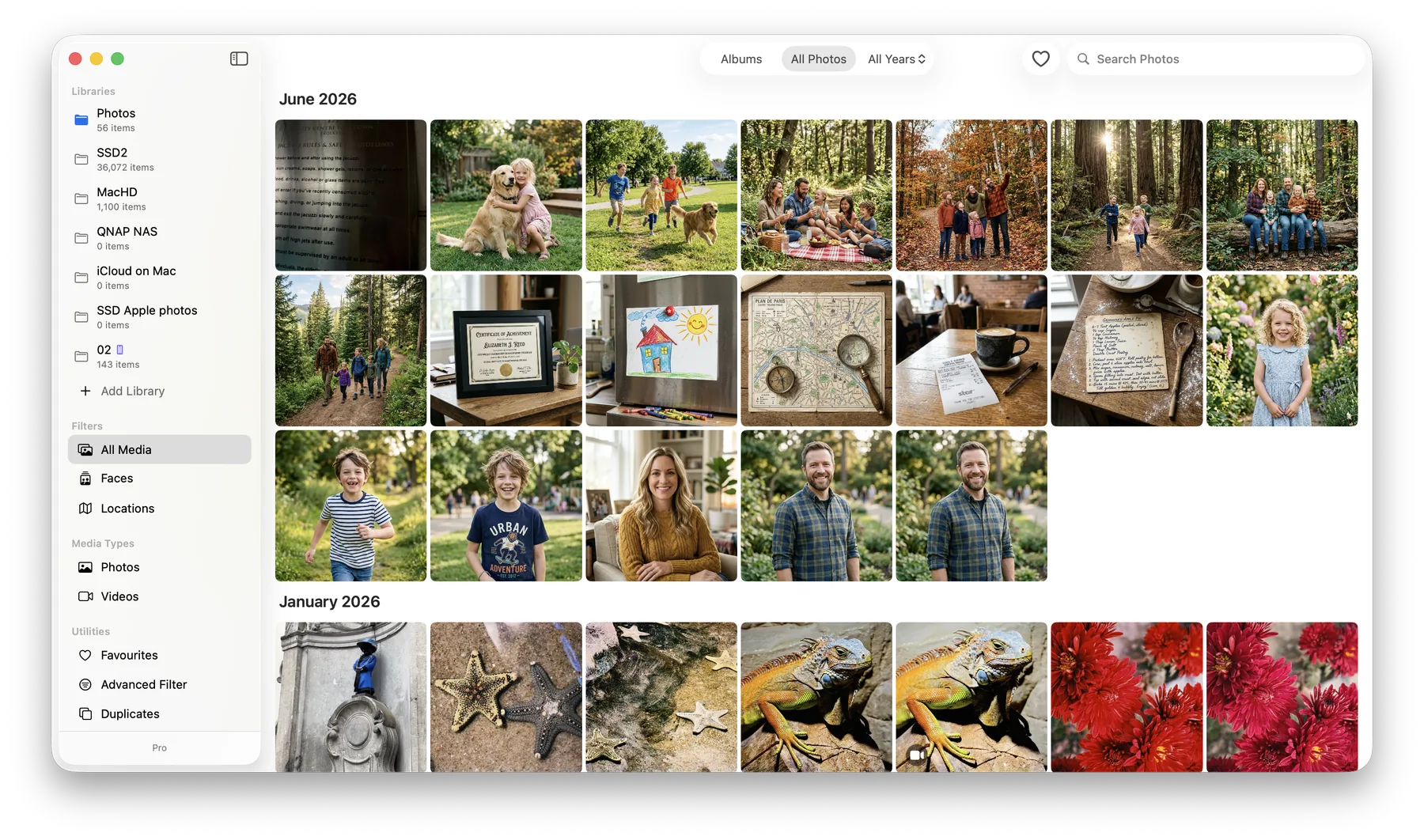
On the Mac
- Install LocalPhotos from the Mac App Store and open it.
- Point it at the folders where your photos already live — on the Mac, an external drive, or a NAS. Nothing is moved or copied.
- Let it organise: people, places, text inside photos, and duplicates are all found on your Mac, never on a server.
From there, explore the People, Search, and Libraries guides.
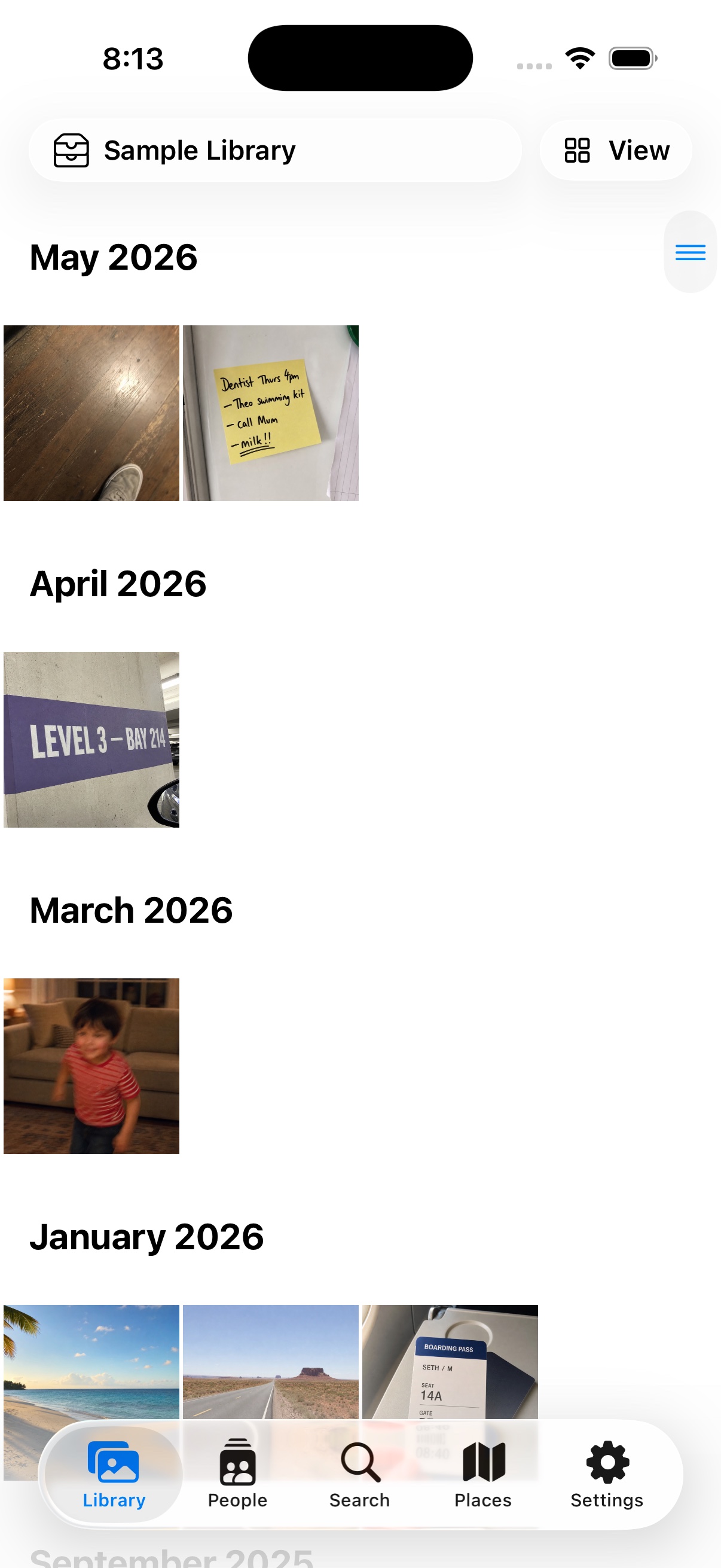
Three doors
- Sync with a Mac — the free Mac app mirrors its library to the phone: people, places, albums, search. The Mac does the heavy analysis.
- Open a folder from Files — iCloud Drive, a USB-C drive, even a NAS mounted in Files becomes a private library on the device.
- Just look around — no permissions, no setup; the app explains itself as you go.
Replay the intro any time from the no-library home screen. The in-app Help (Settings → Help) works entirely offline.
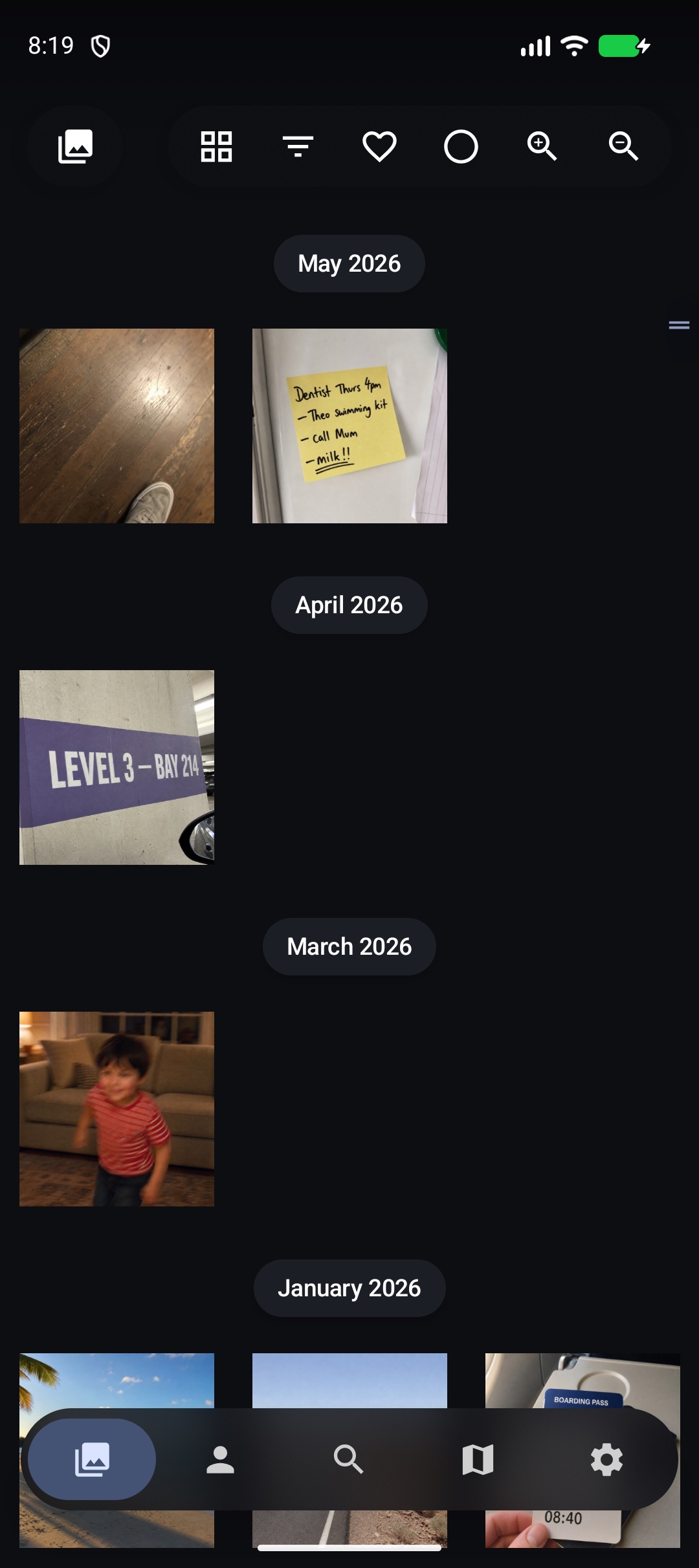
Three doors
- Sync with a Mac — the free Mac app mirrors its library to the phone: people, places, albums, search. The Mac does the heavy analysis.
- Use this phone — the camera roll, any folder, or a NAS share (SMB) becomes a private library, organised on the device.
- Just look around — no permissions, no setup; the app explains itself as you go.
Replay the intro any time from Settings → Help. The in-app Help works entirely offline.
Was this page helpful? Tell us what’s missing — it goes straight to a human, not a tracker.